In this lesson, IBs will learn how they can configure fees and commissions markups that will be charged to clients according to specific parameters. It is possible to create and apply fee schedules and methods.
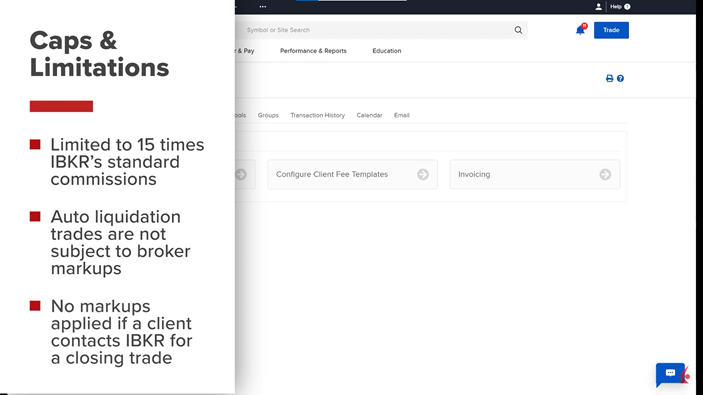
Before configuring markups and fees, it’s crucial to understand their caps and limitations. Broker client markups are generally restricted to 15 times Interactive Brokers’ (IBKR) standard commissions. However, auto liquidation trades are exempt from broker markups. No markups apply if a client contacts IBKR to execute a closing trade.
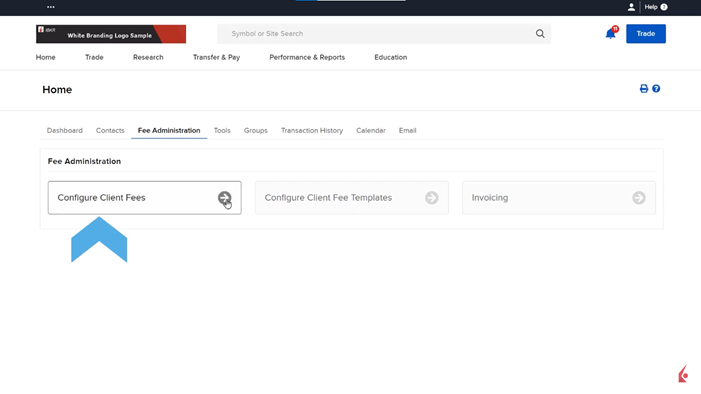
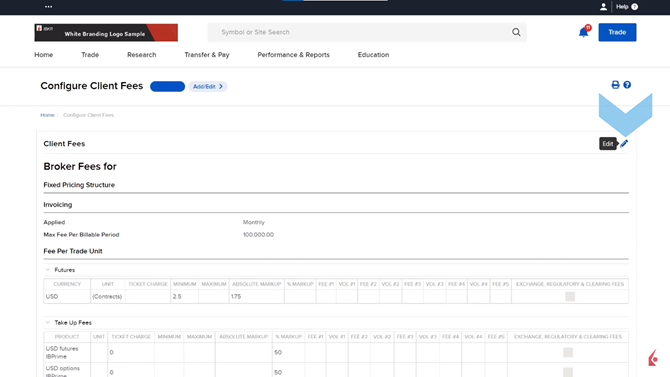
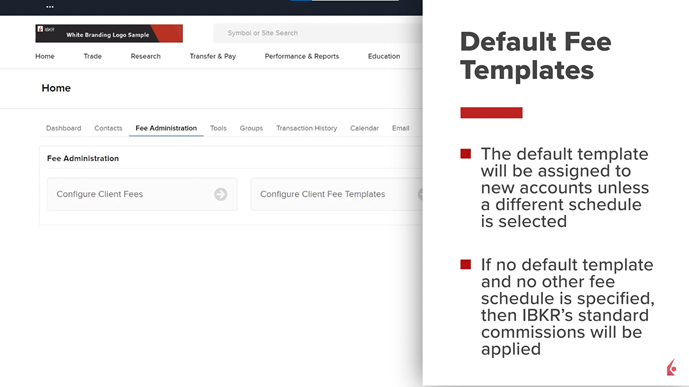
Client fees and templates are managed through the Fee Administration tab on the home screen. To adjust or add a fee schedule for a client account or multiple accounts, brokers can use the Configure Client Fees button, which opens the Account Selector for account selection. The current fee schedule for the selected account(s) can be edited using the Pencil edit icon. Changes submitted before the 4 pm EST cutoff will take effect the next business day. This means that trades executed today will use the old schedule, but the new schedule will apply starting the following business day.
Client fee schedules can be assigned individually or stored in templates. Templates enable brokers to maintain different fee schedules for multiple client accounts efficiently. New brokers receive a blank default template, which they can configure. If no custom template is created or selected, IBKR’s standard commissions apply without markup. Templates can be managed by selecting the Fee Administration tab and then Configure Fee Templates. Existing templates can be viewed, modified, or deleted using the appropriate icons like the blue “i” icon to view an account. Templates can be applied to accounts by selecting Add/Edit Accounts, using the Account Selector to choose accounts, and confirming the changes.
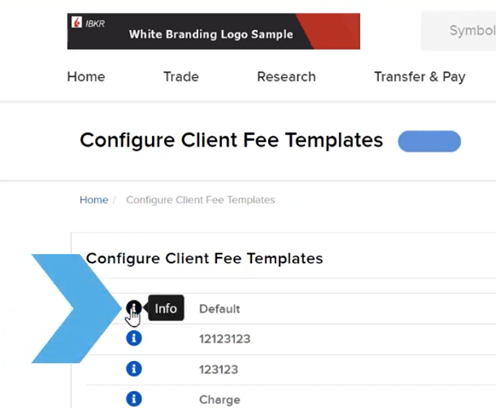
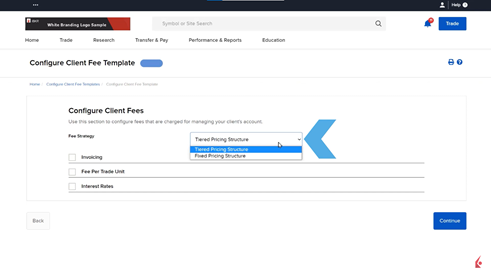
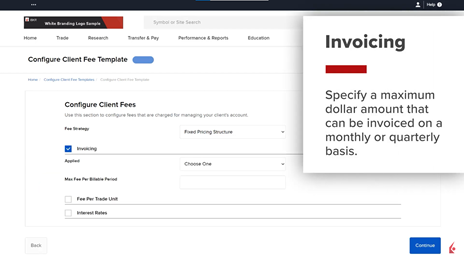
To create a new fee template, brokers click the plus sign on the Client Fee Templates page, name the template, and choose Fixed or Tiered Pricing for the fee strategy. The base calculation is IBKR’s commission schedule. Fees can be configured using Invoicing, Fee Per Trade Unit, or Interest Rates. Invoicing allows brokers to specify a maximum invoice amount, which they can then submit up to that limit. Fee Per Trade Unit lets brokers charge per share, contract, or trade value percentage, configurable by asset class, exchange, and currency. Interest Rates allow brokers to adjust credit and debit interest rates. For Fee Per Trade Unit and Interest Rates, additional configurations for asset classes and currencies are available.
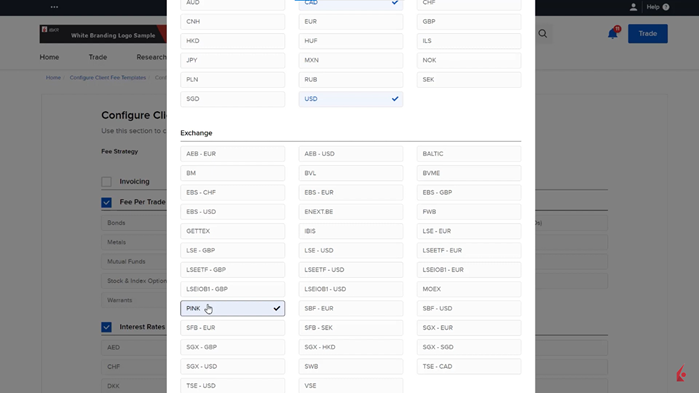
For instance, choosing “Stocks” allows the broker to select USD and CAD, indicating a configuration for stock markups in these currencies.
Brokers can also set specific markups for stocks on particular exchanges. If “PINK” is selected, USD stocks listed on the PINK exchange can have a different markup schedule than other USD-domiciled stocks. After selecting the desired asset classes and currencies, clicking “Continue” will proceed to the respective configuration pages.