
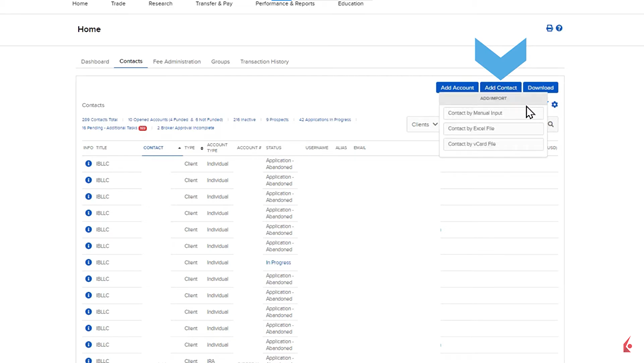
In this lesson, the Contact page in Broker Portal allows the IBs to manage contacts. It can be accessed from the Home page, then click on the Contacts tab. Contacts can be filtered by: all contacts or total, all opened accounts, inactive contacts or abandoned applications, prospects, application in progress, pending tasks, broker approval incomplete.

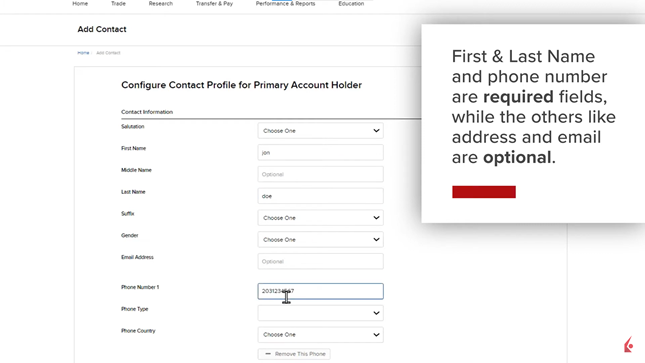
Adding contacts can be also achieved by selecting Add Contact and then selecting one of the three ways proposed: manual entry, Excel file, and VCard. By manually inputting the contacts info, some are required information and other are optional.
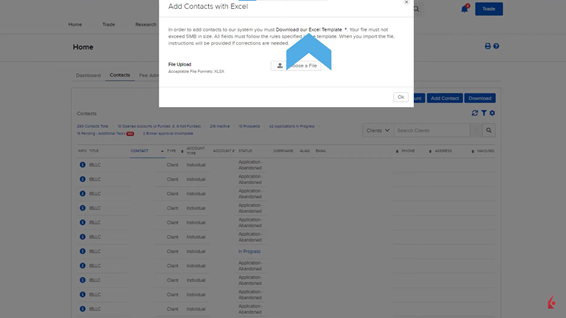
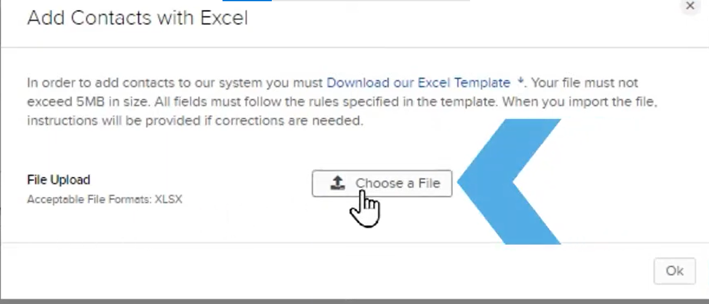
Another option to import contacts uses an Excel template that can be uploaded as show below by clicking the link highlighted in bold letters:
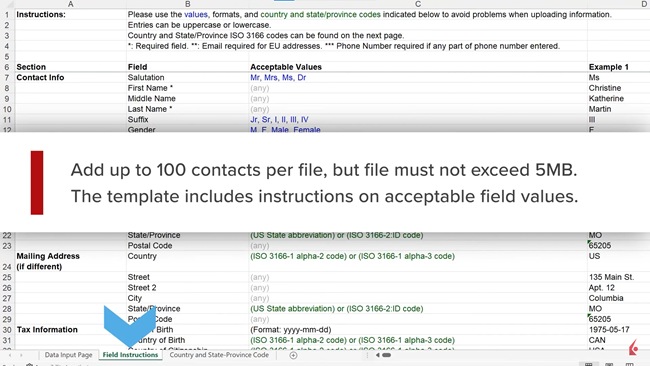
After downloading the Excel file, the instructions can be seen in the Field Instructions tab. All of the fields marketed with an asterisk are required to be input.
After completing the file, it can be uploaded as follows by clicking the Choose a File button. If all the information in the file is consistent it will deisplayed a message that the file has imported the contacts successfully:
The last method to import a contact is by using a VCard in a similar way than uploading an Excel template. This time click on Add Contact and then select the VCard method, the following dialog box will show asking to upload the VCard file for your contact, the the details can be edited for your new imported contact by clicking the “i” icon and the configure button:
