
Advisors can build Model portfolios fast and professionally built to place them in TWS Model Portfolios feature. Also, third party vendors offer Models to be searched, download, and used to manage client’s investments.
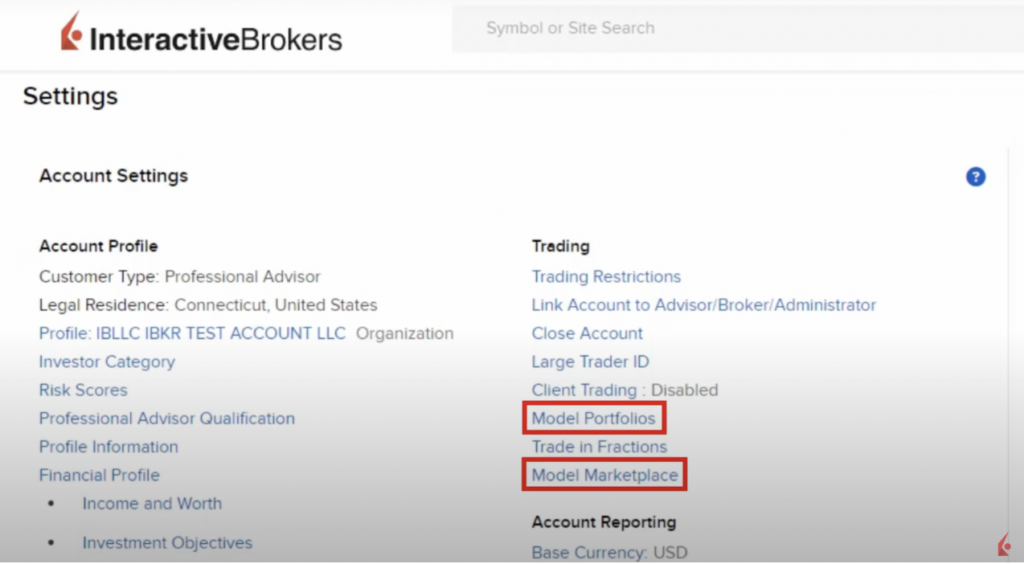
The first steps to access Model Marketplace are: enable both Model Portfolios and Model Marketplace in the Advisor Portal. Then, in the Advisor’s Account Settings screen, under Trading subscribe to theses services.
Then, log into TWS to browse the Advisor Model Marketplace. Popular models include those from AGFiQ, Cabria, Global X, John Hancock, and WisdomTree and can help saving time. They can also be sync after a third-party modifies or updates the model. Advisors can filter models by: risk, asset class, attributes, and frequency of rebalance.
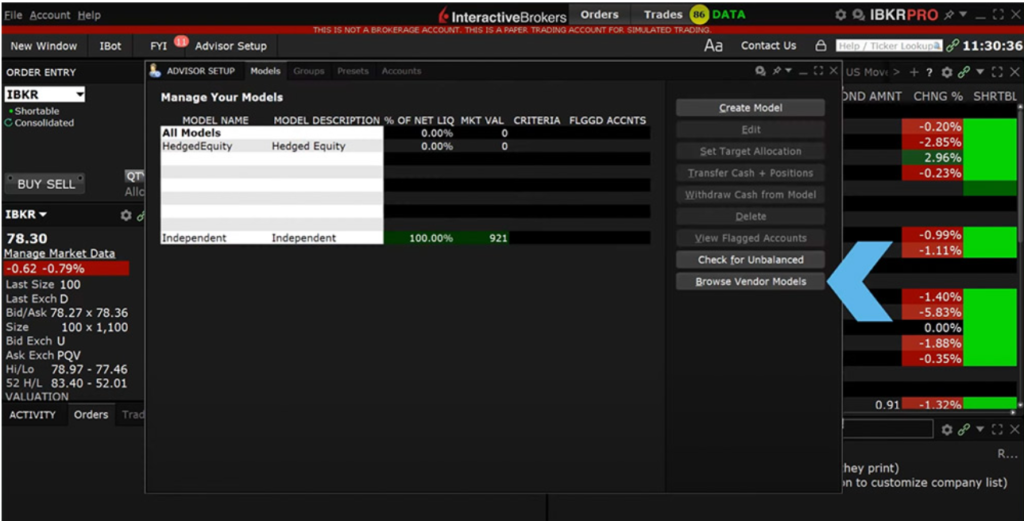
These models consist entirely of ETFs and cash, allowing advisors some flexibility to adjust weightings. Users can view holdings and weightings through a pie chart for visual representation. To add a vendor model to TWS, click the Import button, which opens the Create Model dialog box. Imported models maintain a link for refreshing and syncing with updates from the vendor, but making personal changes to the model breaks this link. Finally, clicking the Create and Set Targets button opens the model in the Rebalance Window.