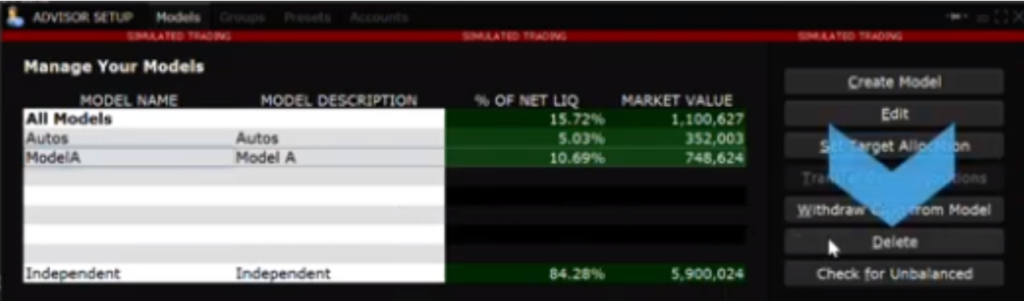
Model portfolios also offer the possibility to add and remove stocks, options, and having an additional client invest into the model. For example, adding an extra stock in the portfolio previously created can be done as follows in the Rebalance Model screen. The rebalance button can be found in the far-right side of the screen. Click under SPY in the Financial Instrument column and add IWM. Then allocate the right percentage and make sure that the Target % comes back to its original 100%. Finally, click on the Save Target to Model.
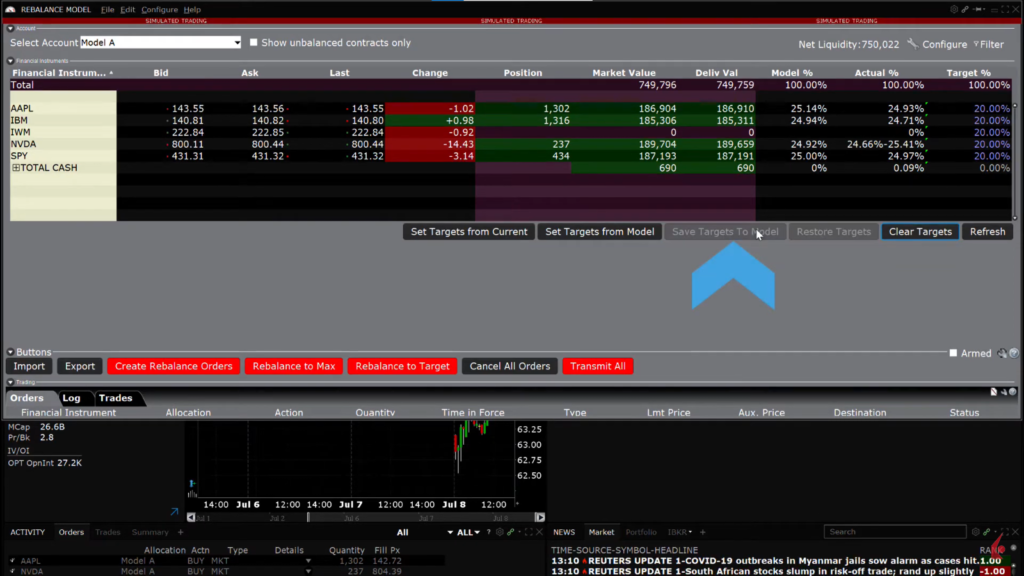
The process of removing a stock from a Model using the Rebalance Model screen is outlined as follows: to remove a stock, the target allocation for that stock is set to 0%, while the remaining stocks are adjusted to a target allocation of 25% each. After setting these percentages, users save them by clicking “Save Targets to Model”, which changes the font color of the new weights to purple. Then, by clicking “Rebalance to Target”, users can finalize the adjustments and make any necessary order modifications. Once all orders are transmitted and filled, the actual percentages in the Model reflect the updated weights, demonstrating both the addition and removal of stocks from the Model.
To completely divest a Model, you need to first adjust all Target percentages to 0% within the Rebalance Model Screen. After saving these changes, initiate a Rebalance to Target, confirming the adjustments in orders before transmitting them. Once the orders are executed, all Positions should be closed, leaving the Model with 100% cash. Exit the Rebalance Model screen, navigate back to the Advisor Setup, and delete the Model. This action moves the cash back into the independent area, making it available for other investments. The same steps can be taken with different types of assets such as Options, Futures, or Bonds.