
In order to an advisor to invest a client or group of clients into a custom index, and rebalancing the custom index, the button “Invest in Custom Index” must be used. This button can be found in a new window Portfolio Tools, then Reallocate Portfolio.
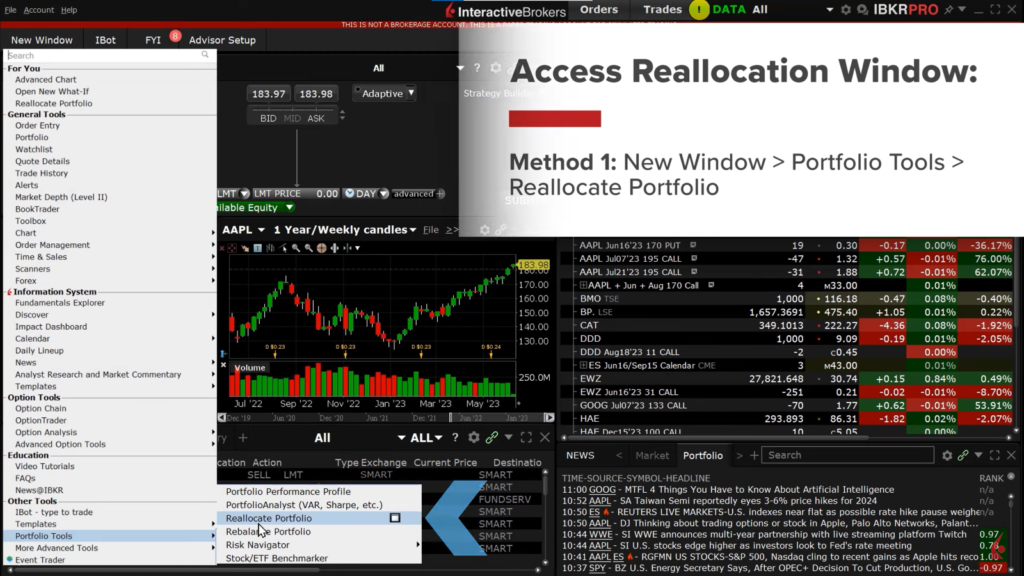
In the Reallocation window, advisors select accounts to invest in the custom index using dropdown menus. Allocation can be specified in dollar amounts for individual clients or target percentages for client groups.
For clients with existing stock positions, advisors can transfer these into the model to offset new orders. This is managed under the When Investing section of the Reallocation window.
After setting allocations, advisors generate reallocation orders and review them in the Trading section. Orders are transmitted for execution once confirmed.
Post-execution, advisors review portfolio alignment in the Rebalance Portfolio window, assessing actual allocations against targets and benchmarks for optimal portfolio management.
How to rebalance a Custom Index?
To rebalance a custom index, an advisor begins by accessing the Advisor Setup area and selecting the desired custom index. From there, they navigate to the Target Allocation Screen where they can set the target weights. This can be done by choosing either the Benchmark ETF to base weights on its allocations or the Actual option to mirror the current model composition. Adjustments to weights can be made manually by altering the target percentages or by editing custom rules if needed.
Once the advisor is satisfied with the new allocations, they must save these changes by clicking “Save Targets”. The saved targets will be indicated by a purplish-blue color in the Target % column. To implement these changes, the advisor can proceed to create rebalance orders by selecting “Rebalance to Target percentage” and clicking “Create Rebalance Orders”. These orders will be listed in the Orders log, allowing for adjustments to order types and prices before final submission by either transmitting each order individually or submitting all at once with the “Submit All Orders” button.