
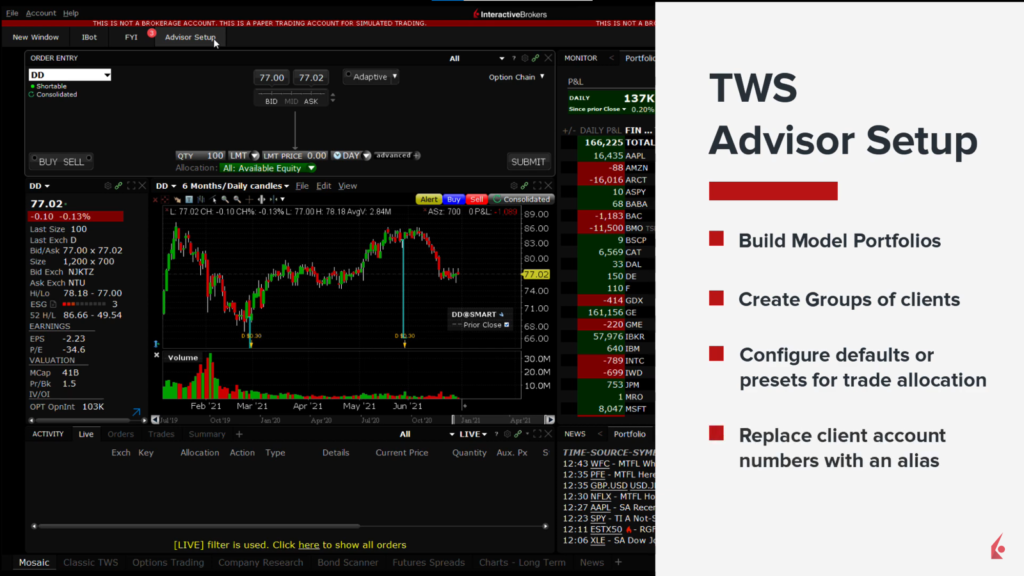
Default allocation settings can be managed from the configuration settings in the Advisor Setup to divide clients into groups or Model portfolios. The Advisor Setup can be found in the right of the New Window button in Mosaic.
Let’s start with Accounts. On the Accounts page, there are two columns: the IB account number on the left and the assigned Alias on the right, if you have created one. Creating an Alias helps to easily identify accounts without remembering multiple account numbers. The Alias appears across TWS, simplifying portfolio reviews and trading. To create an Alias, click the hyperlink to Account Management, which logs you into the Advisor Portal.
On the Presets tab, advisors can set default allocations for orders. The default is to allocate all accounts using Available Equity. Other allocation options can be accessed via a dropdown menu, listing each account number or Alias. You can change to a specific account if needed. Grouped accounts are displayed above with their group names, and the default allocation is for all clients based on Available Equity. Alternative methods like Net Liquidation Value and Equal Quantity can be chosen using the expansion arrow. You can also set rules for TWS to handle orders when accounts fail to meet margin requirements, either rejecting the entire order or reducing its size.
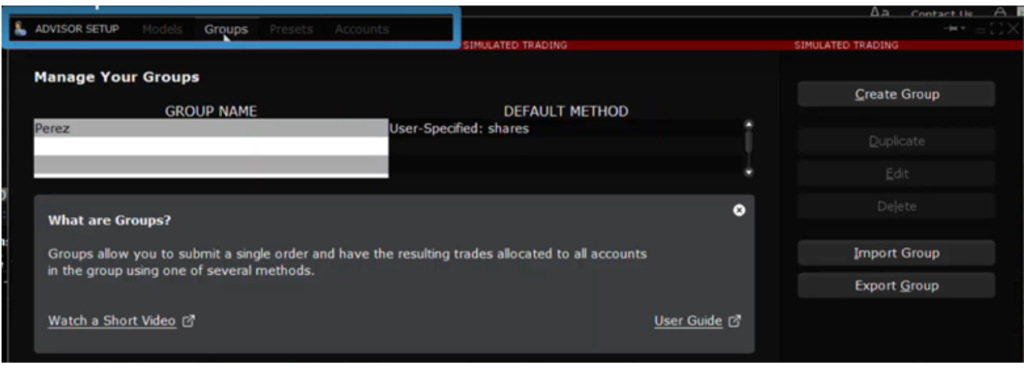
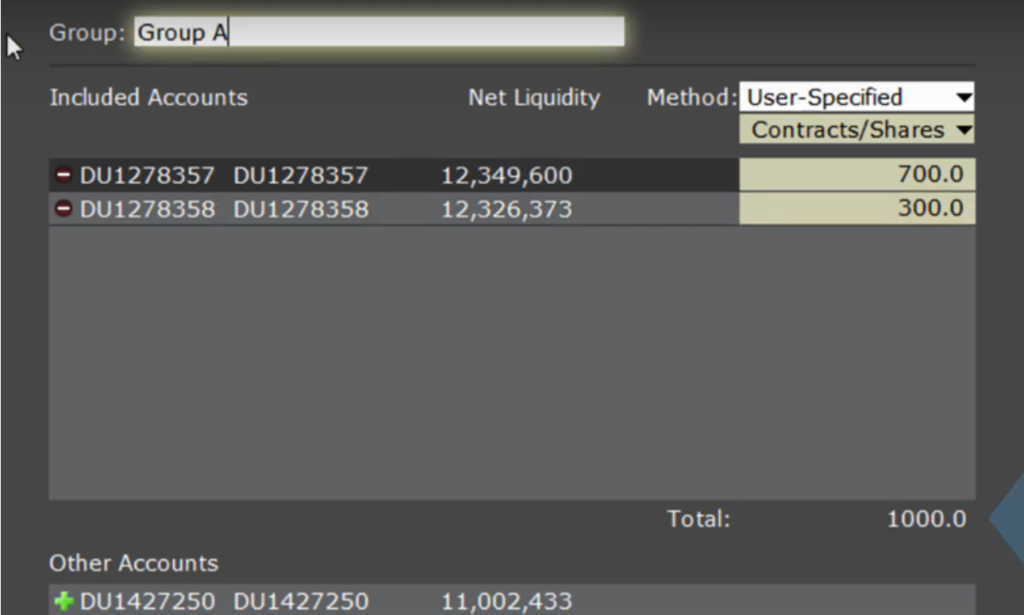
Next, on the Groups tab, advisors can group clients for trading purposes. For instance, create one group for risk-averse clients and another for moderately risk-loving clients. During order entry, select the desired group from the allocation dropdown menu. Similarly, on the Portfolio page, use the account dropdown menu to locate and select a group. The Groups tab displays group names on the left and their default allocation methods on the right. To create a group, click the Create Group button, assign a name, and choose an allocation style from the Method dropdown menu, such as Available Equity, Net Liquidation Value, Equal Quantity, or User-Specified. For example, Group A can include two accounts with values of 700 and 300 shares, totaling 1,000 shares.
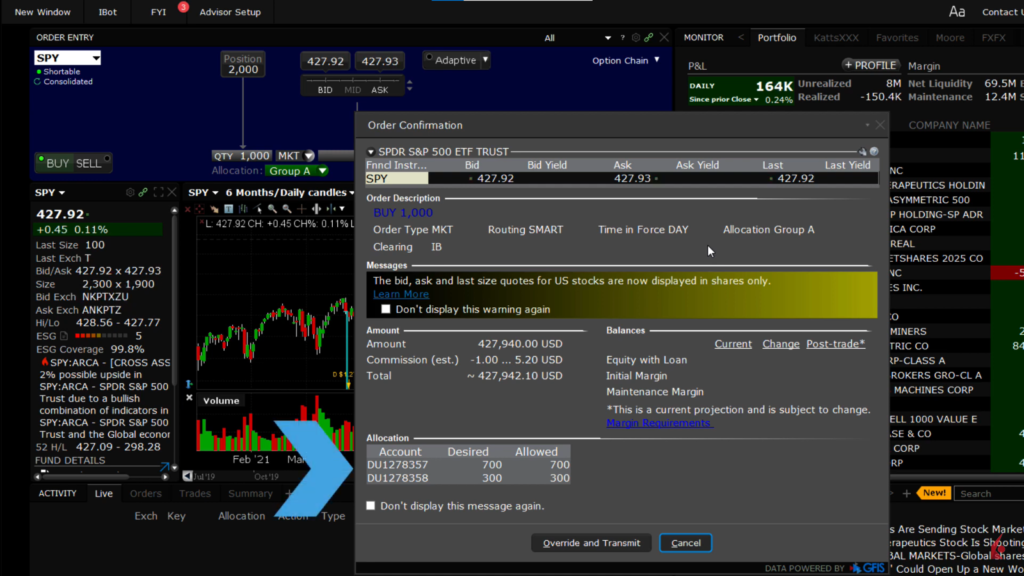
In the Order Entry panel, I will click the Buy button for a stock. From the Allocation dropdown menu, I will select Group A. Upon doing this, the Quantity input field updates from its default value of 100 shares to 1,000 shares, which I previously set for Group A. I’ll configure this as a Market order and click Submit. On the Order Confirmation screen, you will see that 1,000 shares are allocated to two accounts, with 700 shares going to one account and 300 shares to another.
Groups are a convenient tool for Advisors to manage several accounts logically, helping them remember on whose behalf they are trading. The final tab is for Model Portfolios.