
In this section the Allocation tools within Orders Entry facilitate buying or selling on behalf of clients.
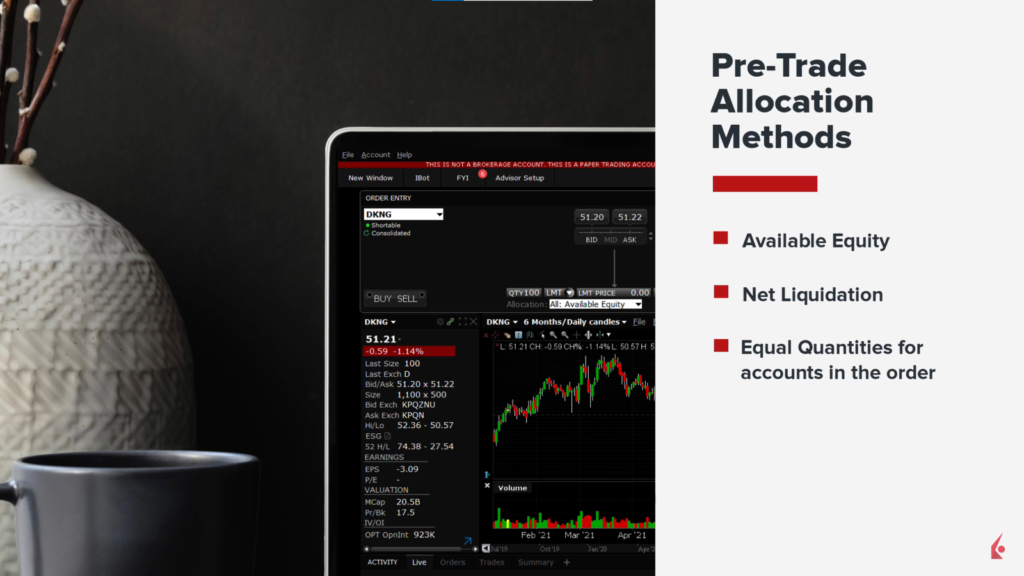
An Advisor can enter orders in the Mosaic interface in multiple ways, catering to individual accounts, groups of accounts, or all accounts simultaneously. The process of creating account groups is explained in a separate video within the Advisor Setup area. When entering trades, various methods can be employed, such as considering the available equity in a client’s account, the net liquidation value, or simply allocating an equal quantity across the accounts included in the order. This video provides a detailed walkthrough of these pre-trade allocation methods.
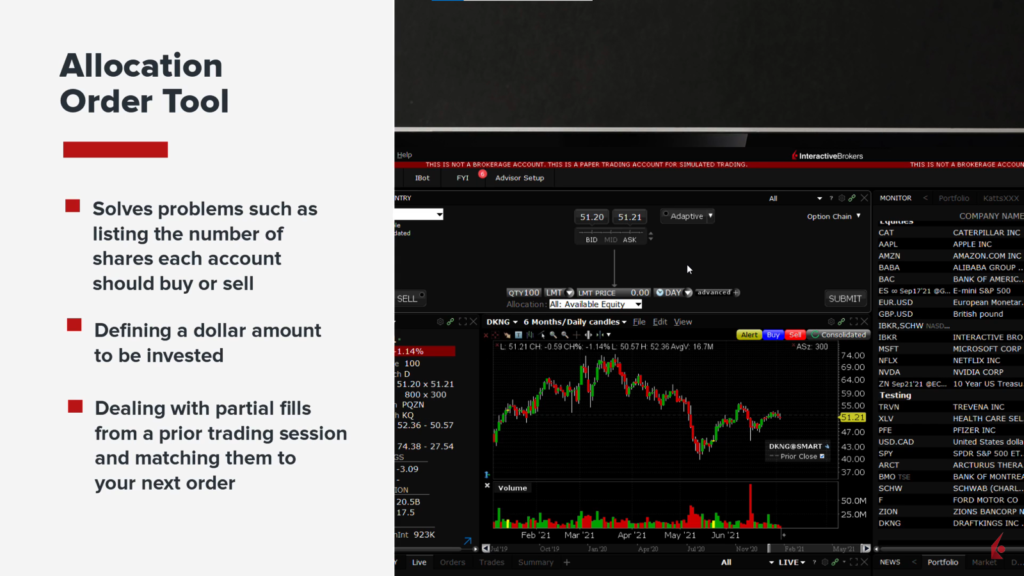
In subsequent videos, the Allocation Order Tool is introduced to offer greater precision in orders. This tool addresses issues like determining the number of shares each account should buy or sell, specifying a dollar amount to invest, and managing partial fills from previous trading sessions to align with the next order. Additionally, the videos will demonstrate how to create and invest in model portfolios and utilize the Rebalance Tool to adjust investments back to their intended weighting levels.
Order Entry Panel
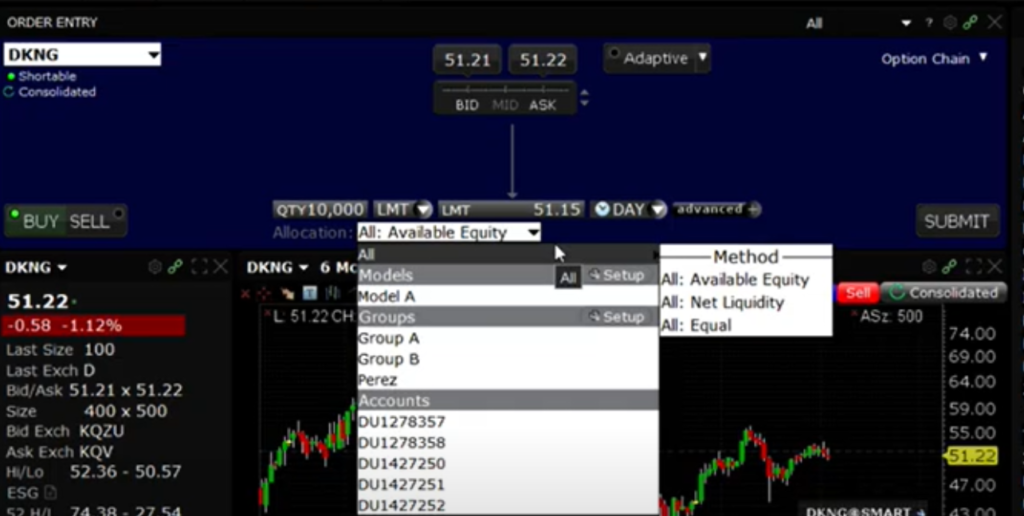
Locate the symbol to trade and click on the desired action Buy or Sell. Next, enter the number of shares and set the type of order to execute the order. Next, select the allocation group of accounts according to one of the following methods: Available Equity, Net Liquidation Value, and Equal Quantity.
First, glance down at the allocation dropdown menu to select from customized groups configured using the Advisor Setup tool or a single account. Once you make your selection, the dropdown menu will close, allowing you to click the Submit button to continue with your order.
This action generates an Order Confirmation, which clearly states how the order will be executed. For an individual account, a matrix displays the current position in the chosen symbol, the initial and maintenance margin for the account, how these variables would change if the trade executed, and their post-trade values.
At the lower right of the Order Confirmation ticket, you will see the allocation broken out by account, indicating the desired number of shares for the allocation selection and what is allowed based on either Available Equity or Net Liquidation Value. Additionally, rules for handling orders when insufficient funds are available in a specific account are configurable in the Advisor Setup.
Once satisfied with the order, click Transmit to route it accordingly. The open order will then appear in the Activity panel in the lower left of the screen. In the Allocation column of the Live orders tab, it is easy to see whether the order is for one, all, or a group of accounts. Orders can be modified and resubmitted if changes are made to time-in-force, order type, or price.