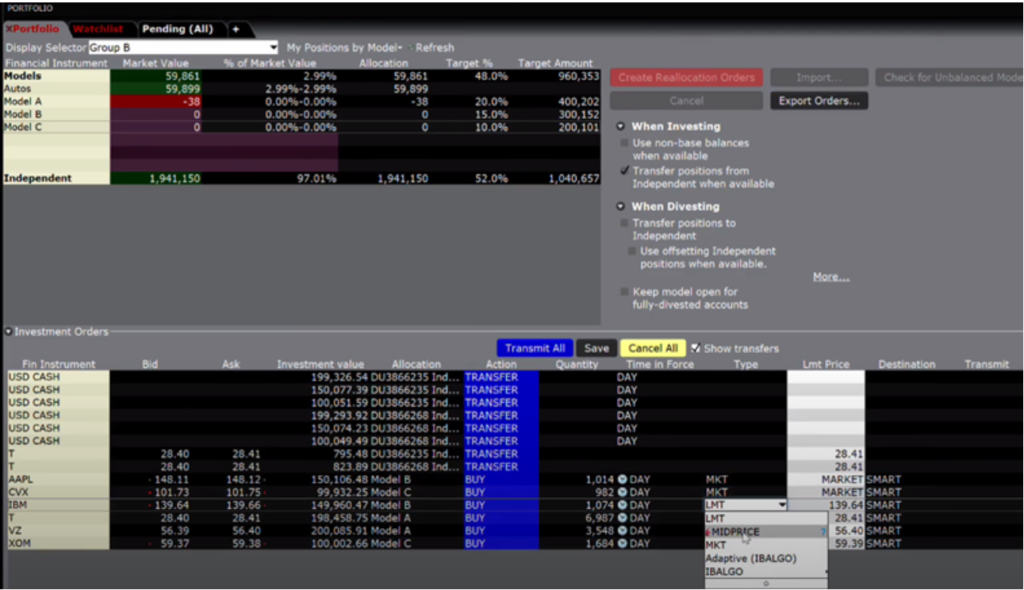
The Reallocation window can be used to transfer funds from one model to another.
Users are instructed to locate the Classic TWS tab at the bottom of the screen and access the Portfolio tab from the top menu, if necessary. Once in the Portfolio tab, they use the Display Selector dropdown to navigate to the desired Group and Model. In this demonstration, Group A is selected, and the investment in Model A is adjusted from 15% to 20%. After selecting the desired allocation, users click the “Reallocate” button to finalize the changes, using either target percentage or target amount options as needed.
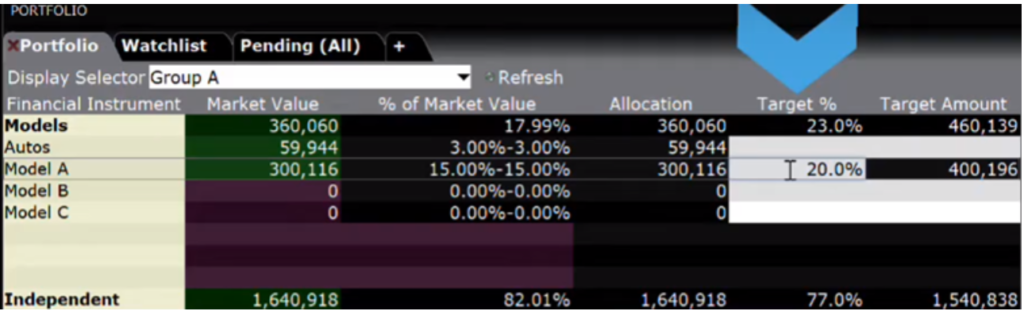
After the orders are created, the order type, time in force, price, and destination can be changed. In the case that the user wants to reallocate funds to multiple models, the following steps must be done:
Go back to the Reallocation window and populate the drop-down box with Group B. Next, allocate 20% into Model A, 15% into Model B, and 10% into Model C.
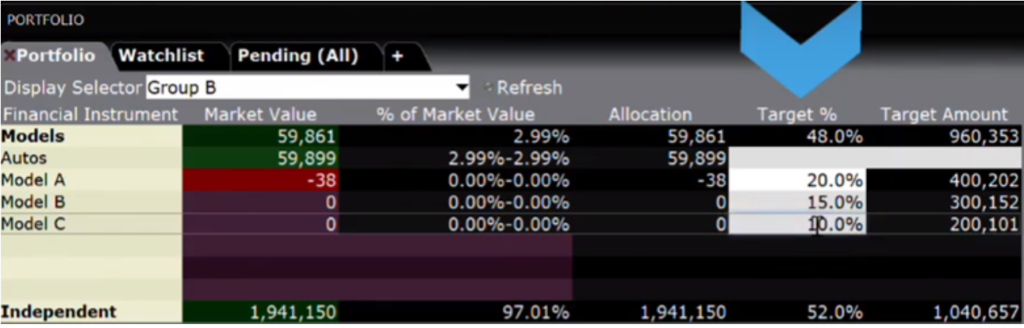
The operation concludes by clicking the red Crate Reallocation Orders button and adjusting the orders as necessary before clicking Transmit All.