Rebalancing all the accounts, a group or an individual account, is possible on the Rebalance Portfolio screen.
To access the Rebalance Portfolio in Mosaic, click on the New Window button in the upper left-hand corner, scroll down to Portfolio Tools, and select Rebalance Portfolio. This action will open the Rebalance Portfolio screen. Using the drop-down box in the upper left corner, you can choose between a Group, all accounts, or an individual account, which will display all the positions held by your selection on the screen. If you select a Model in the box, the screen will automatically switch to the Rebalance Model view.
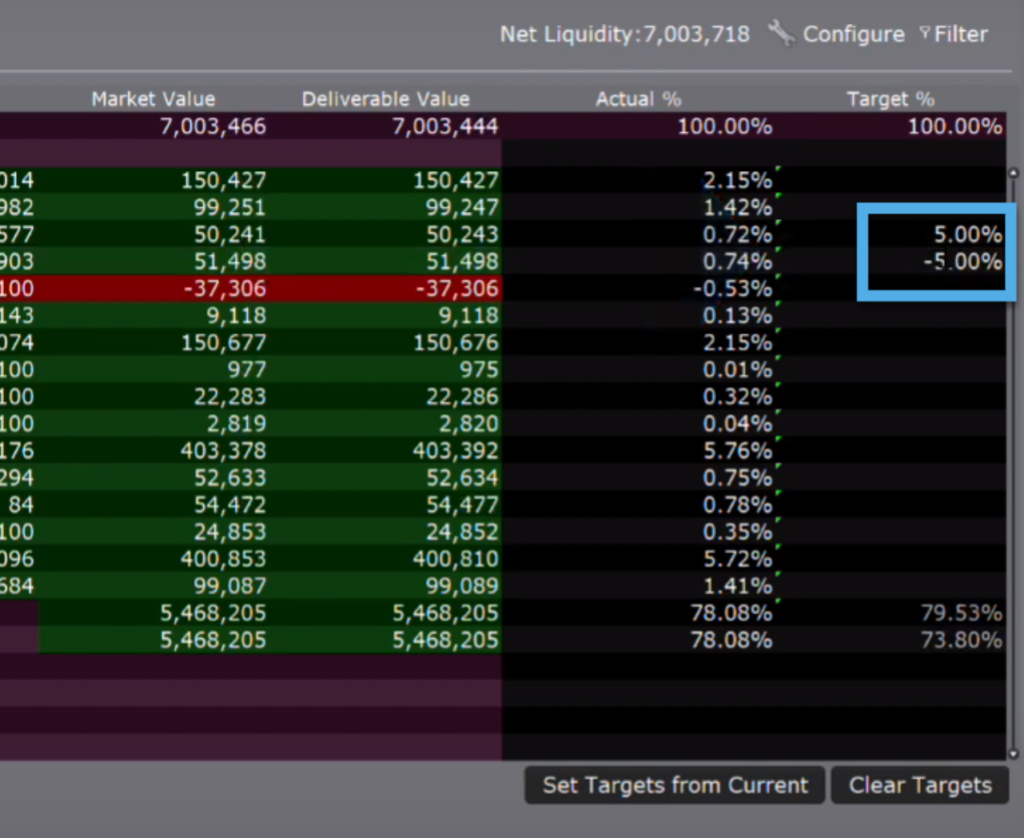
On the Rebalance Portfolio screen, you can set the Target % to match the current Actual % values by clicking the “Set Target from Current” button at the bottom for all instruments, or by right-clicking on the Target % box of an individual instrument. To clear the Target % values, click the “Clear Targets” button at the bottom right. You can manually enter new Target % values in the desired rows, with positive percentages indicating long positions and negative percentages indicating short positions.
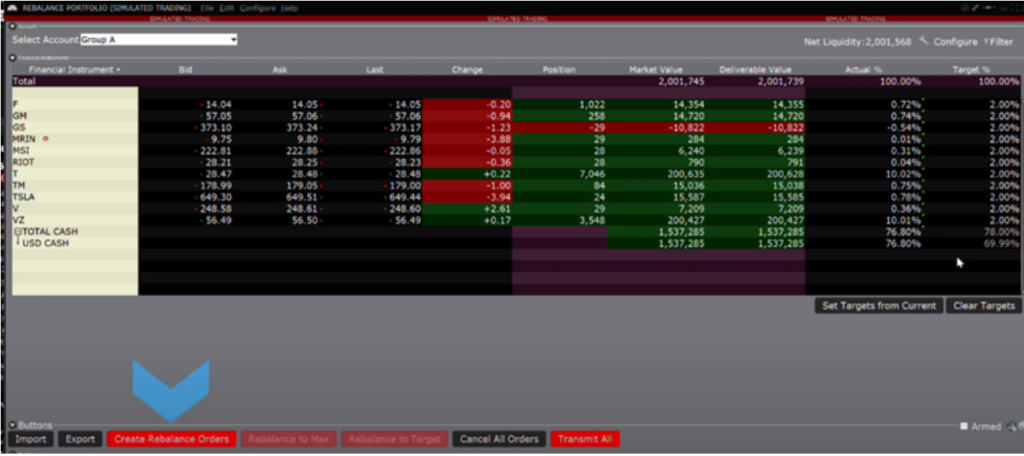
Portfolios can be exported or imported using the buttons in the lower left-hand corner. To adjust all stock Target % for Group A to 2%, select Group A from the account drop-down box, then change each Target % in the column to 2%. The Total Cash Target % will adjust accordingly. Once satisfied with the Target % weights, click the red “Create Rebalance Orders” button to open the trading window.
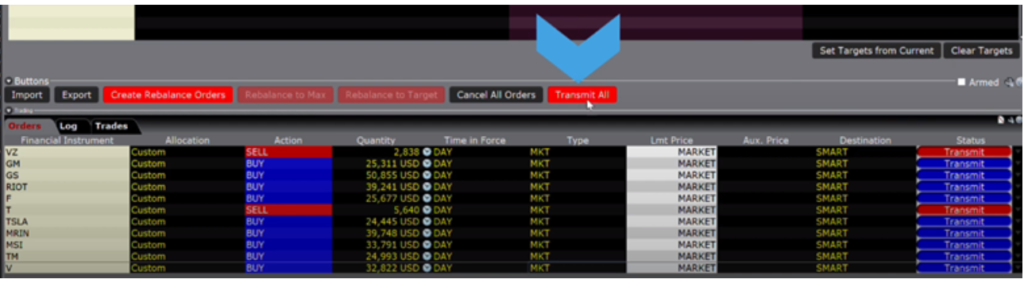
The trading window can be expanded by clicking on the pop-up window or dragging the bar above it. After creating the orders, you can set the order type, price, time in force, and destination. When all settings are complete, you can send the orders individually or click the Transmit all button to send them all at once.