
A Model portfolio can be created to ease the process of reallocating client money into the model. This can be done within the Advisor Setup area and click on Models tab.
There are two types of positions: those associated with a Model Portfolio and those independent of any model. Model Portfolios are constructed by users, with each model’s weight represented as a percentage of the Net Liquidation Value. The sum of these percentages equals 100%, though it may exceed this due to leverage. To create a Model Portfolio named Model A, containing four stocks each weighted at 25%, illustrating the process step-by-step within the platform’s interface as follows:
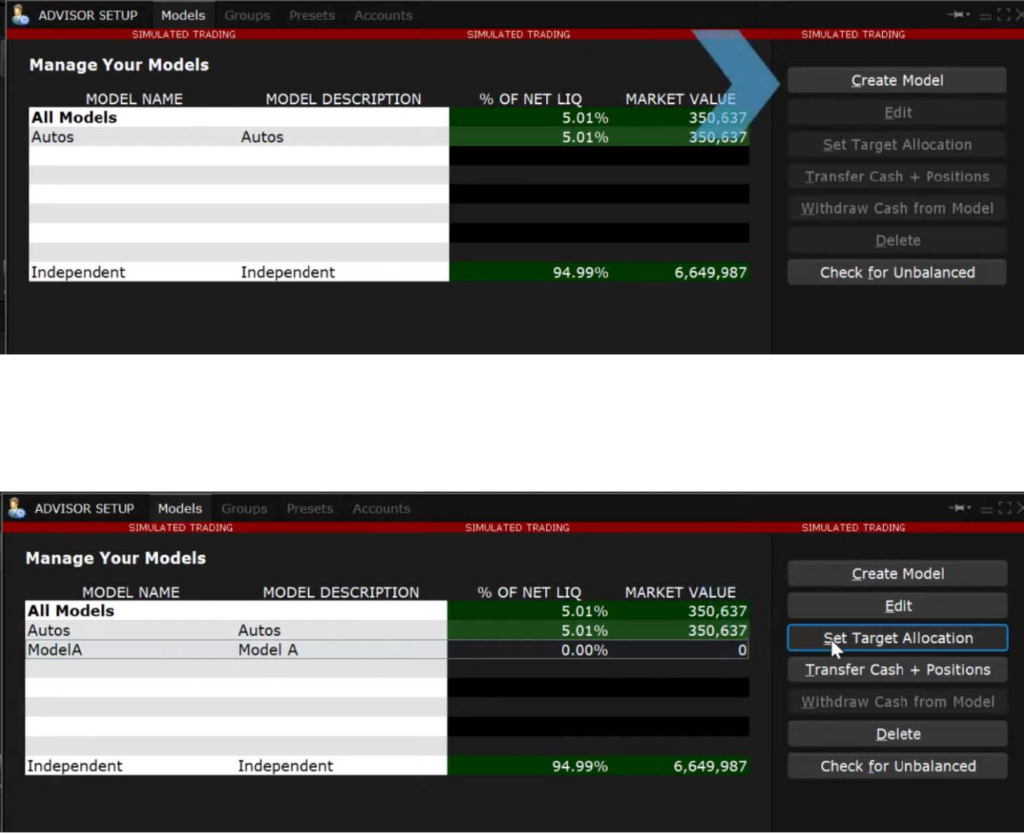
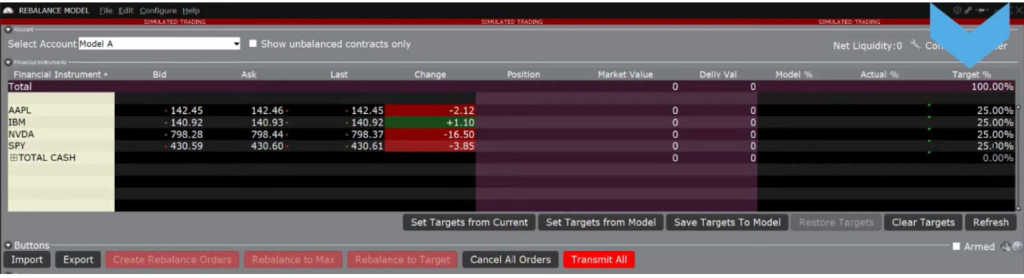
Next, click Set Target Allocation to open the Rebalance Model window. Next, add the four stocks by clicking into the cell below the TOTAL CASH field and enter the desired Model weightings for each stock in the Target % column to the far right. After saving the letters will turn into purple to confirm the allocation.
Investing in the Model
To begin, users locate and select the Classic TWS tab and navigate to the Portfolio tab. If not visible, they can add it using the + sign and right-clicking to choose the Portfolio window icon. The crucial icons for reallocating and rebalancing Model Portfolios are found in the upper right corner of the screen. Users need to ensure the display selector is set to show all accounts or the specific account they want to work with. The Reallocate window displays Model Portfolios and their percentage of Net Liquidation Value (NLV) alongside dollar amounts. Users input either a percentage or dollar value for investment, and the software computes the complementary value. They can also opt to transfer positions from an Independent status to align with a Model Portfolio to manage risk. Finally, users initiate the process by clicking the red button to create reallocation orders.
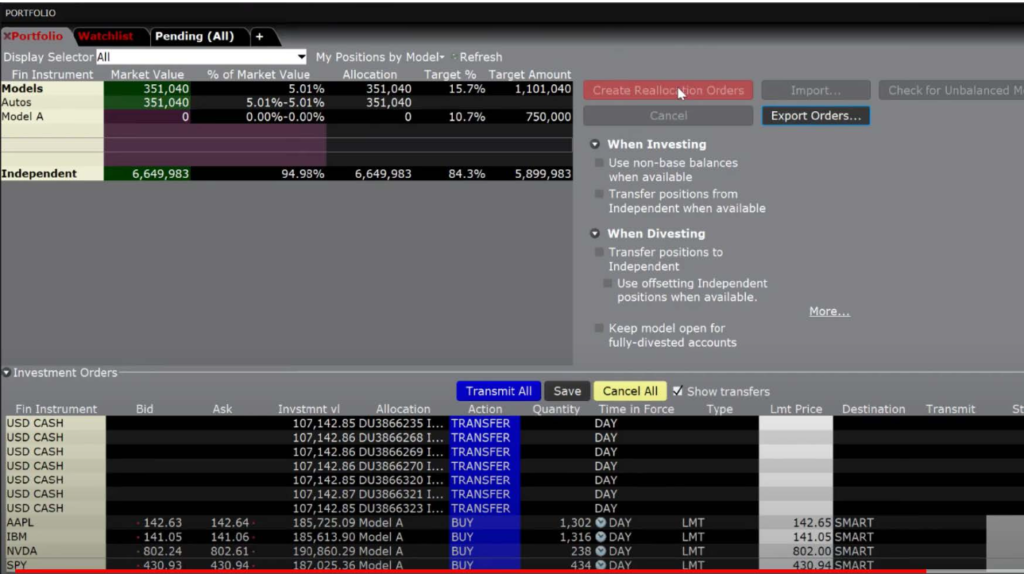
Cash transfers are automatically created from client accounts to fund transactions into Model Portfolios, with an option to hide or display these transfers using a checkbox. Users can view the total shares to be purchased across selected accounts and choose order types and limit prices. The Order type dropdown menu provides access to IB Algos for trading strategies. Once satisfied, users transmit all orders with a blue button and can submit individual orders sequentially if preferred. After submission, users can review portfolio holdings in the Classic Portfolio tab and manage Model Portfolios through the Advisor Setup area. The process aims to simplify building and investing in Model Portfolios, emphasizing the initial setup and subsequent management using the Classic TWS interface.