
White Branding can be a good marketing tool to impress the IB’s customers that a complete package of in-house trading tools and supporting tools are offered. Also, white branding allows IBs to display their own logos and company information on the Registration system, client portals, reports, trader workstation and other materials.
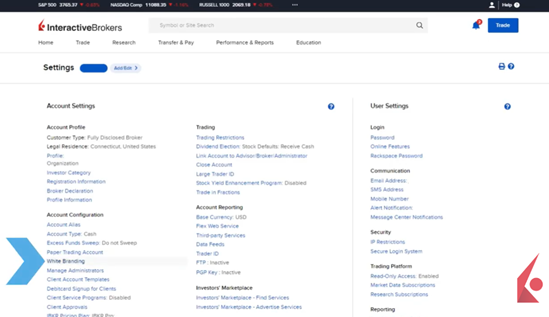
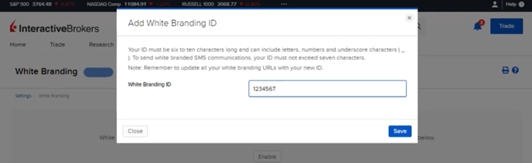
White Branding is set up and managed through the Broker Portal by selecting the Head & Shoulders icon, navigating to Settings, and then choosing White Branding in the Account Configuration section. Initially, brokers must enable White Branding by clicking Enable, entering a White Branding ID of six to ten characters (seven if including SMS communications), and then saving the changes. The White Branding ID can be modified anytime using the configure gear icon.
- Registration System, Portal, Statements, and Portfolio Analyst
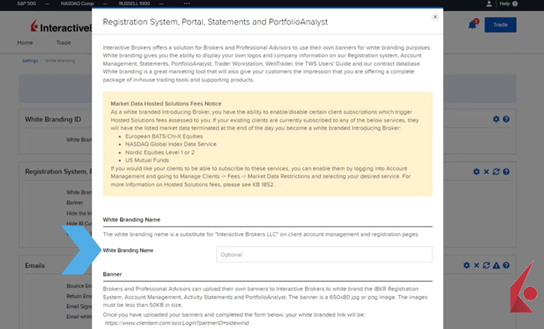
The White Branding page is divided into five main categories: Registration System, Portal, Statements, and PortfolioAnalyst; Emails; Contract Database; User Guides; and Trader Workstation. In the Registration System, Portal, Statements, and PortfolioAnalyst section, brokers can replace “Interactive Brokers LLC” with their own branding on the Client Portal, application registration pages, and customer reports. They can upload a custom logo for these pages, ensuring the image is 650×80 pixels and under 50KB, and must avoid using the Interactive Brokers logo. Additionally, brokers can customize the client login link and hide IBKR’s customer service tools, replacing them with their own links.
- Emails
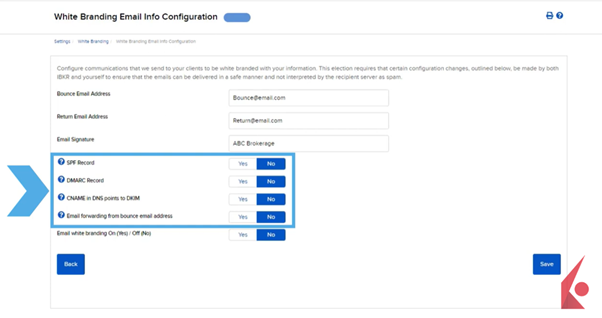
In the Emails section, brokers can white brand emails sent to clients by specifying bounce and return email addresses and an email signature. Configuration steps must be followed to ensure emails are not flagged as spam, with further guidance available through expandable information icons or by contacting the White Branding team in whitebranding@interactivebrokers.com. Activating email white branding takes effect within 24 hours, and successful configuration is indicated by a SUCCESS alert.
- Contract Database
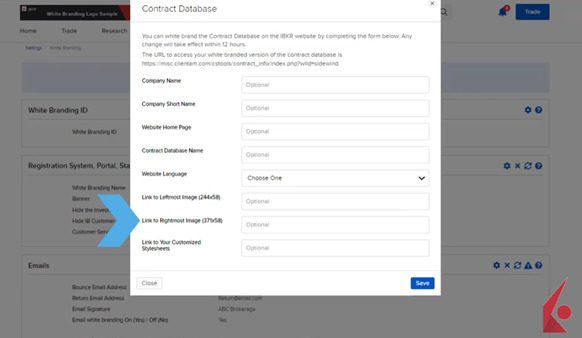
The Contract Database section allows brokers to customize the IBKR’s Contract Database page with their own images and stylesheet. The leftmost and rightmost images must be 244 x 58 and 371 x 58 pixels respectively. Changes to the contract database will be reflected within 12 hours.
- User Guide
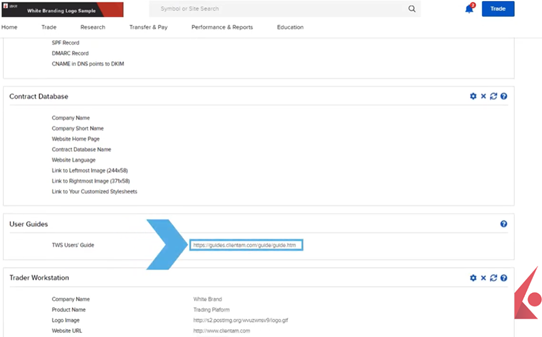
The User Guide section provides a generic version of the TWS User Guide without IBKR branding, as this cannot be customized with the broker’s logo.
- Trader Workstation
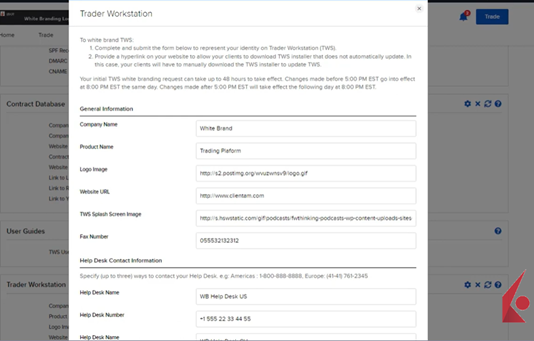
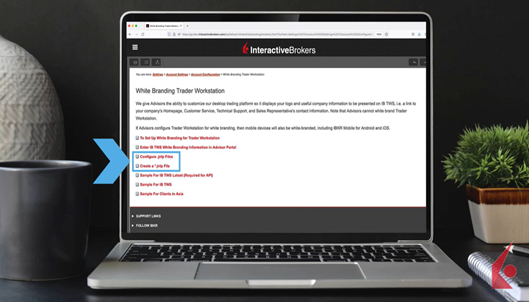
In the Trader Workstation section, brokers can customize the IBKR desktop trading platform with their logo, company information, and useful links. This section includes areas for entering company name, logo, website, help desk contact information, and useful links for the TWS Menu bar. Initial setup may take up to 48 hours, and brokers must provide clients with a link to download the customized TWS and configure .jnlp files, with detailed instructions available in the White Branding section of the Broker Portal User Guide.
Overall, White Branding is straightforward to set up and enables Introducing Brokers to personalize the IBKR software with their organization’s identity and information.